
Captions AI: Videos Subtitles
Pixster StudioVideo Players & Editors
4.6291.00 Reviews
- Version
- 3.8.4
- Installs
- 1.00M
- Age Rating
- Everyone
Screenshots
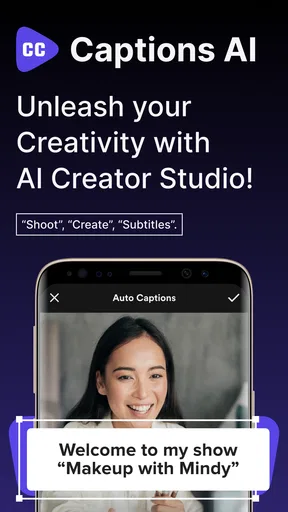
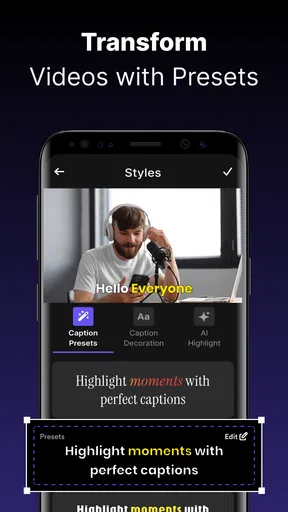
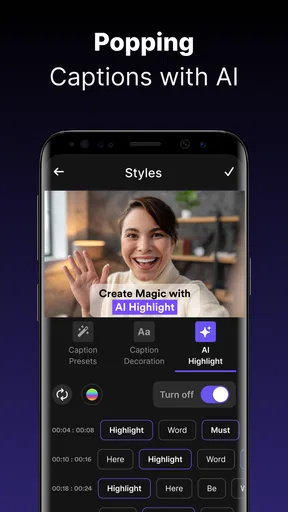
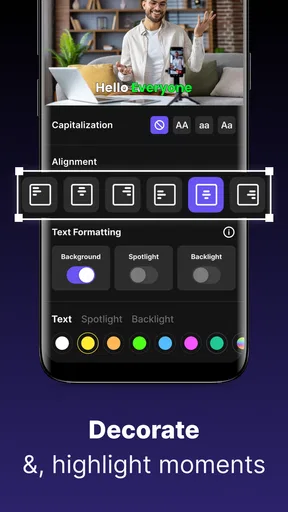
Our Review of Captions AI: Videos Subtitles
 Analysis by Appyee
When I’m making a short video, the talking rarely ends when I stop recording: I still need to make the spoken parts easy to follow, tidy up the wording, and prepare the clip for a social feed. That’s the job I’d consider Captions AI: Videos Subtitles for. It’s a video-editing app from Pixster Studio, aimed at creators who want help with captions and the steps around presenting a finished clip. I’d treat it as a practical assistant, not a replacement for checking the final result yourself.
A sensible starting workflow
My first pass would be simple: choose a video, let the app prepare its captions, then review the text while listening to the original speech. That last step matters even when the recognition looks convincing. Names, product terms, quick phrases, and speech over music are easy places for automated text to go wrong. I’d correct those before spending time on styling, since a polished caption is still unhelpful if it changes what the speaker meant.
For a talking-head clip, I’d work in short sections and check punctuation as well as words. A long sentence displayed as one block can be harder to read than the same thought broken at a natural pause. If the video is meant for a quick social post, I’d also watch it once without stopping, paying attention to whether the text keeps pace with the speaker. That review catches awkward timing and crowded lines that are easy to miss while editing individual words.
What Makes It Stand Out?
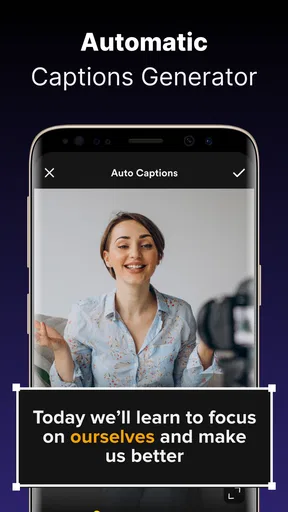
First off, the simplicity of Captions AI: Videos Subtitles is a game changer. The app pretty much does all the heavy lifting for you. You upload your video, and it automatically generates subtitles with impressive accuracy. I’ve tried a bunch of other apps, and let’s just say they didn’t quite hit the mark.
What I love most is the real-time editing feature. You know how sometimes the AI doesn’t quite catch a word right? Well, you can instantly edit the subtitles without having to pause the video. It’s seamless and saves a ton of time. Plus, the interface is super intuitive. If you’re not tech-savvy, don’t worry. You’ll find yourself navigating through it like a pro in no time.
Customization at Your Fingertips
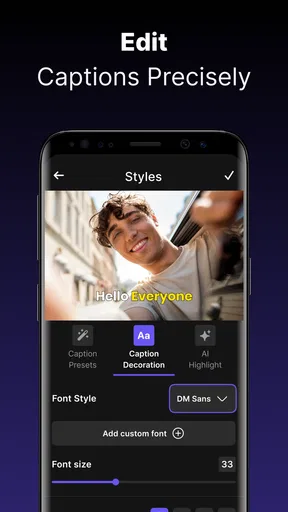
Another feature worth mentioning is the customization options. You can change the font style, size, and color of your subtitles, which is perfect for branding your content. This app lets you match the vibe of your video with just a few taps. I spent a good half-hour just playing around with different styles, and it was oddly satisfying.
I’d use that flexibility with a little restraint. On a bright or busy background, a color that looks stylish in the editor may be difficult to read once the video is moving. I’d test the chosen look against several moments in the clip, especially where the background changes, rather than judging it from one still frame. For a repeatable style, I’d settle on a readable font and color combination and reuse it instead of redesigning captions for every post.
Settings worth checking before you commit
Before exporting or sharing, I’d check the details that affect how the result feels on a phone: text size, contrast, and whether the captions cover a face, product, or important action. A style that works for a close-up speaker may not suit a cooking demonstration where the hands and counter need to remain visible. If a clip has quick cuts, I’d scan those transitions carefully; even accurate words can feel distracting if the viewer has too little time to read them.
The app’s store summary also points to AI-generated hashtags, caption writing, and a video teleprompter alongside subtitle work. Those tools suggest a broader creator workflow, but I’d still make the words sound like me. A generated social caption is a draft, not a substitute for a clear description of what the clip actually shows. I’d check that any hashtag is relevant to the post instead of adding a long string just because it looks more complete.
Language support can be useful when a creator speaks to more than one audience, but I wouldn’t assume that automatic recognition removes the need for a fluent review. For a video in another language, I’d check names and idioms with someone who knows how people actually speak it. That is particularly worthwhile for a business announcement, instructional clip, or anything where a mistranscribed phrase could confuse viewers.
Faster habits for repeat creators
Once the first clip is finished, the biggest time saver is a consistent routine rather than rushing through the checks. I’d keep the same order each time: review the transcript, fix meaning and punctuation, check the visual style, then watch the whole video once. That makes it less likely that I’ll export a clip with a small but embarrassing name error or captions that disappear into the background.
For a creator who records several short clips in one sitting, I’d treat each video as its own edit instead of trusting one caption pass to work equally well across all of them. A quiet introduction and a lively clip recorded near street noise have different review needs. I’d also write down preferred wording for recurring names or product terms, so I can check them deliberately each time rather than hoping the automatic result is consistent.
A realistic use case is a small shop owner recording a quick explanation of a new item between other tasks. They can use the app to prepare spoken captions, correct the item name, choose a readable style, and make a short social caption before posting. The useful gain is fewer separate editing steps; the owner still needs to confirm that the description and final video are accurate. For a creator who posts often, that modest, repeatable process is more valuable than experimenting with a new look on every clip.
Where it fits among video tools
Compared with editing captions manually in a general-purpose video editor, an AI-assisted workflow can reduce the amount of typing, especially for a clip built around speech. The trade-off is that automation needs proofreading, while a conventional editor may offer more control over a complex timeline or a carefully composed sequence. I’d choose this app when the main job is turning spoken content into a social-ready post; for detailed cutting, layered visuals, or precise audio work, I’d start in a fuller editor and use the tool that best fits that project.
It also differs from simply adding text inside a social platform. Keeping caption creation in a dedicated app can make sense when I want to review wording and appearance before posting, rather than doing everything at upload time. On the other hand, if I’m making a one-off clip with only a few words on screen, the platform’s built-in text tools may be quicker. The right choice depends on whether automatic transcription and a repeatable caption workflow save enough effort for the way I create.
Performance and Usability
Now, let’s talk about performance. The app is light and doesn’t drain your phone’s battery, which is a huge plus. I’ve used it on both Android and iOS, and it runs smoothly on both platforms. No lag, no crashes—just a smooth ride from start to finish.
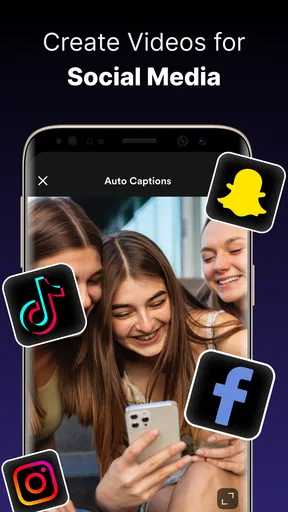
One of my favorite features is the integration with social media. You can directly upload your videos with subtitles to platforms like Instagram, TikTok, and YouTube. It’s a time-saver and makes sharing content a breeze. I’ve been able to increase my engagement significantly just by making my videos more accessible.
I’d still make the final check in the context where the clip will appear. Captions that look clear on an editing screen can feel too small or visually dominant on a phone, so I’d preview the finished video at a comfortable viewing size before publishing. Accessibility is not only about having text present; the words need to be readable, timed sensibly, and faithful to the speech.
Limits, cost, and who should choose it
The app is free to download, with in-app purchases ranging from $4.99 to $49.99 per item. That makes it possible to try the basic workflow before deciding whether paid options fit your routine. I’d avoid paying simply because I expect an automatic transcript to be flawless: even a strong first draft needs a human pass, and frequent corrections can still take time. The average rating is 4.5 from around 63,000 ratings, and it has over one million installs, which gives a useful sense of its reach without telling me whether it suits every creator’s needs.
It is a good fit for people who regularly publish speech-led clips and want captions without typing every line from scratch. Small business owners, educators making short explainers, and social creators who value readable subtitles are the clearest audience. It is less compelling if you rarely publish video, mostly make silent montages, or need frame-by-frame control over a complex edit. In those cases, a standard editor—or even the social app’s own text tools—may be the simpler choice.
Captions AI: Videos Subtitles is rated for Everyone, and its current version is 3.1, with Android support starting at version 8.0. Those details make it approachable for a broad audience, but I’d still think about the content being edited: an age rating does not mean every creator’s workflow or publication choices are automatically suitable for every viewer.
Why You Should Try It
If you’re on the fence about trying Captions AI: Videos Subtitles, let me give you a little nudge. Whether you’re a content creator, a small business owner, or just someone who loves making videos, this app will make your life a whole lot easier. It takes the hassle out of creating subtitles and lets you focus on what you love—making awesome content.
To top it all off, the app is free to download with an option for in-app purchases, giving you access to even more features if you decide to upgrade. It’s definitely worth checking out if you want to up your video game.
So, there you have it! My two cents on Captions AI: Videos Subtitles. Give it a shot and see how it can enhance your video production. Happy captioning!
Verdict
Strengths of Captions AI: Videos Subtitles
- Easy-to-use interface for quick editing.
- Supports multiple languages for subtitles.
- Offers automatic subtitle syncing.
- Customizable fonts and styles.
- Exports in various formats for versatility.
Limitations of Captions AI: Videos Subtitles
- Limited free version features.
- Occasional subtitle syncing errors.
- Requires internet for optimal use.
- Some ads in the free version.
- Lacks advanced editing tools.
Other Releases by Pixster Studio
View All
Smart HPrinter Service :ePrint
Business4.4
Similar Picks in This Category
View All
Google TV
Google LLC3.9

iTunes
Apple4.7

YouTube
Google LLC3.8

MX Player
Amazon Mobile LLC4.2

CapCut - Video Editor
Bytedance Pte. Ltd.3.5

PLAYit-All in One Video Player
PLAYIT TECHNOLOGY PTE. LTD.4.5
Frequently Asked Questions
What is Captions AI: Videos Subtitles and how does it work?
Captions AI: Videos Subtitles is an app designed to automatically generate subtitles for videos using advanced AI technology. It analyzes your video’s audio track and converts speech into text, creating accurate and synchronized captions. This app supports multiple languages and allows for customization options such as font styles and sizes.
Is Captions AI compatible with all video formats?
Captions AI supports a wide range of video formats, including MP4, MOV, and AVI. However, it’s always recommended to check the app’s specifications for any format limitations. Users can import videos directly from their device or cloud storage services, ensuring ease of use across different platforms.
Can I edit the generated subtitles in Captions AI?
Yes, Captions AI provides a user-friendly interface for editing subtitles. Users can manually adjust timings, modify text, and change font styles to ensure the captions fit perfectly with the video content. This flexibility allows for improved accuracy and personalization of subtitles according to user preferences.
Does Captions AI require an internet connection to function?
While Captions AI can perform some basic functions offline, an internet connection is necessary for the app to access its full range of features. Online access allows for more accurate AI processing, language updates, and cloud storage integration, enhancing the overall functionality and user experience.
Is there a free version of Captions AI, and what are the limitations?
Captions AI offers a free version with basic features, allowing users to try out the app before committing to a purchase. The free version may include limitations such as watermarks on exported videos, restricted access to premium fonts, and a cap on the length of videos that can be subtitled. Users can upgrade to a premium version for a more comprehensive experience.
